
How to create an inspection
- Click on “New inspection” and provide Seller details, Buyer details and select the asset, state, and inspection type. Provide the deal/loan/lender reference number.
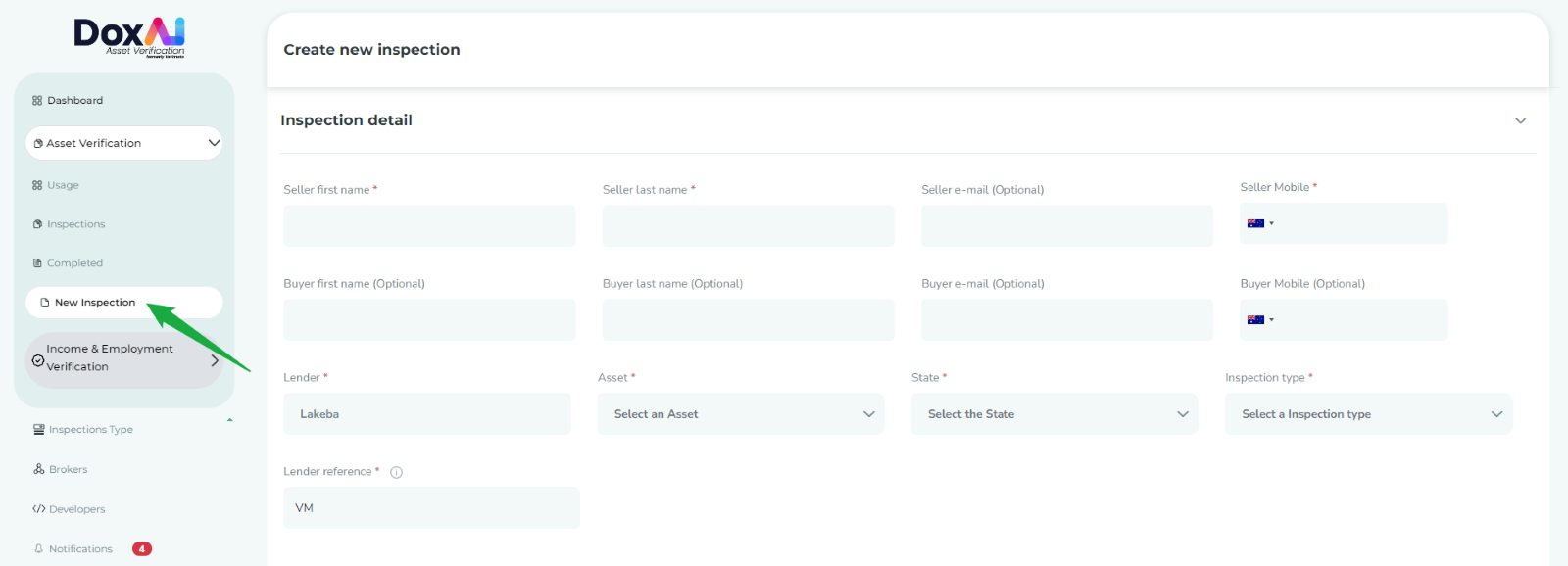
- You can also share the inspection with other users from your company by searching them by Name, Surname or Email. By sharing the inspection, you allow those users to edit/delete the inspection.

How do I activate multiple inspection type?
The Lender Admin will have access to activate multiple inspection types from the “Inspections Type” tab.
By default, “New Lending” Inspection type will be activated for all the assets with all the available documents. You can customise the document list of each inspection type for each assets & state and activate multiple inspection types-
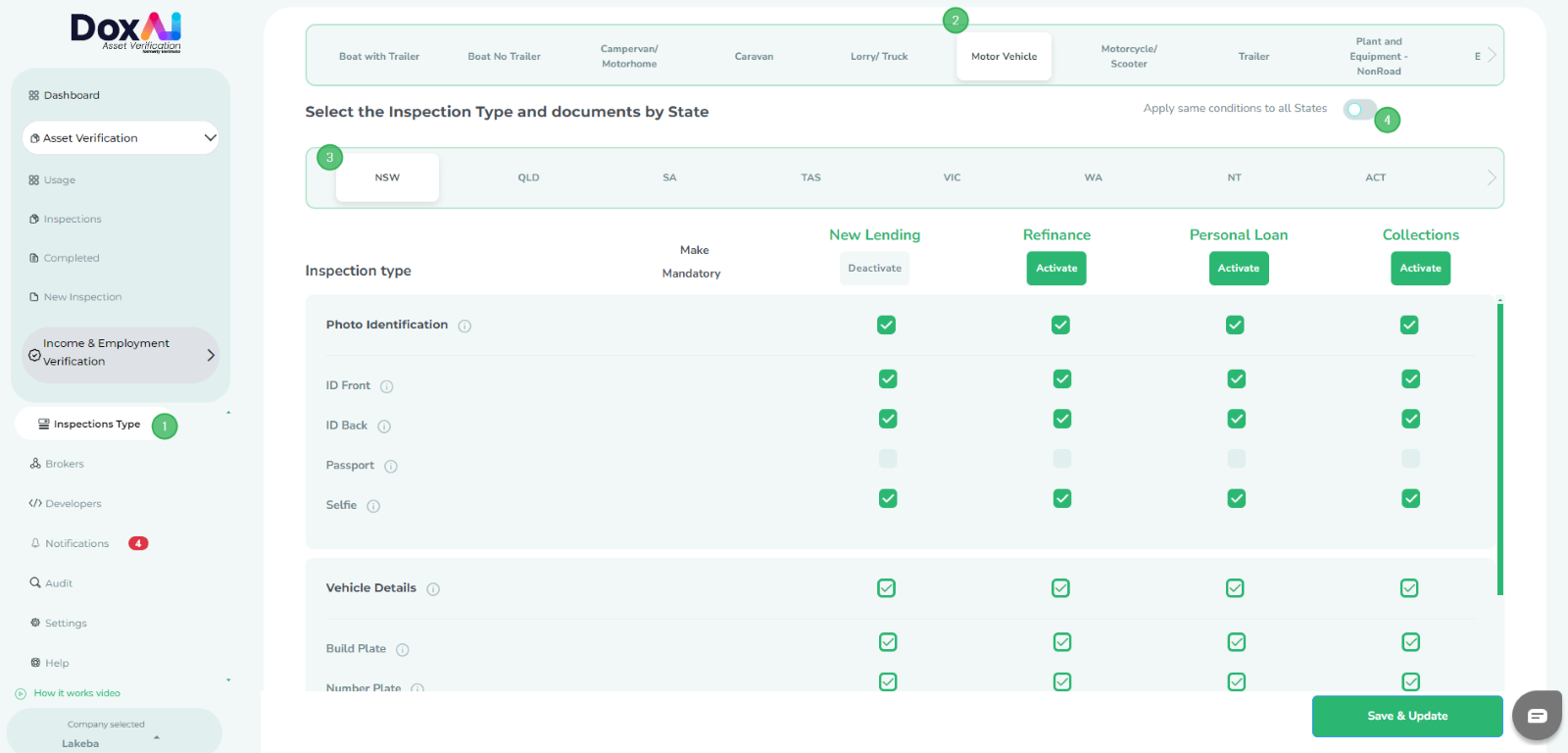
- Go to “Inspection type” tab
- Select the “Asset” and “State” you want to customise the document list
- You can also select “Apply same condition for all state”, if you want to keep the same document list for each state
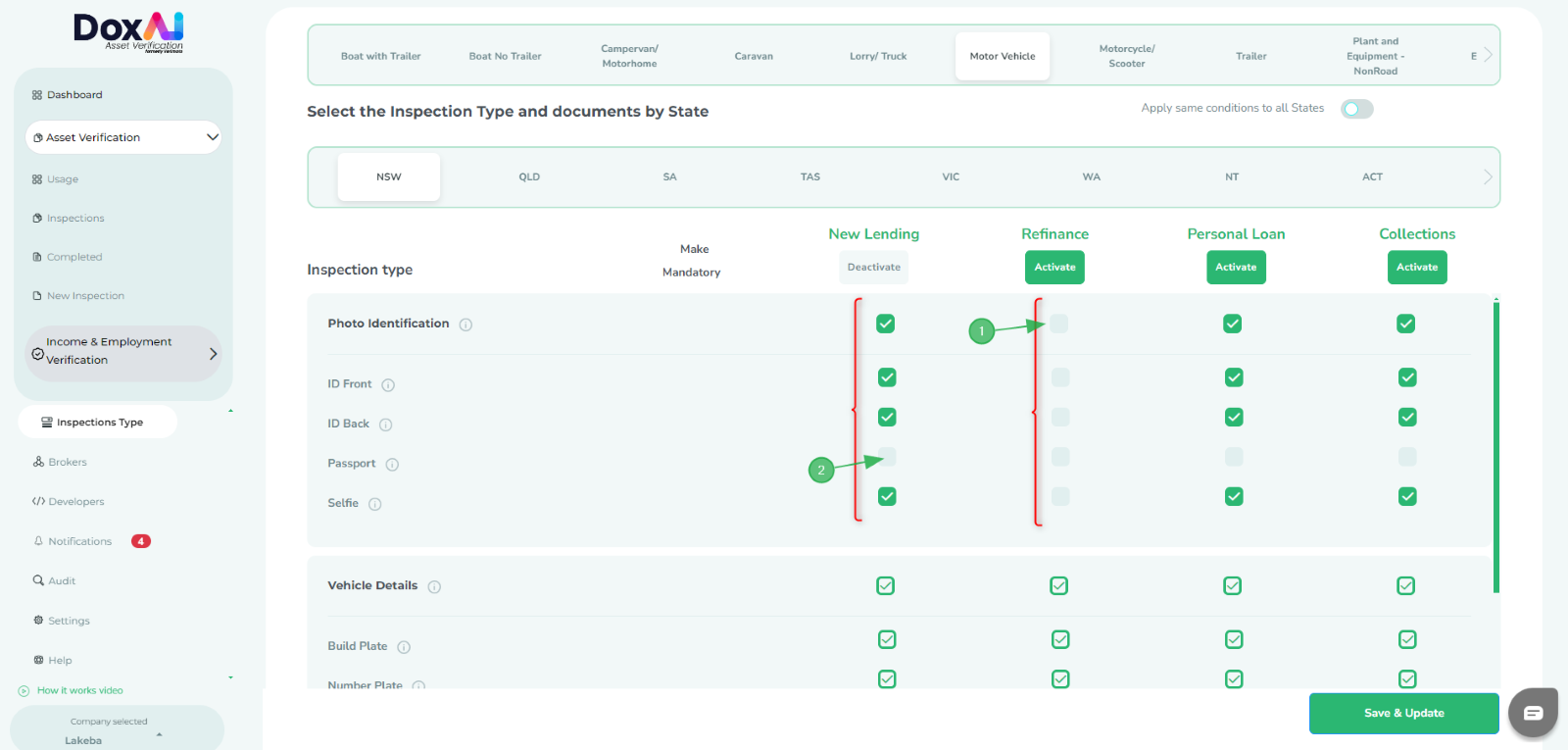
- You can Select/ Unselect the entire document section
- You can Select/ Unselect individual documents under document section
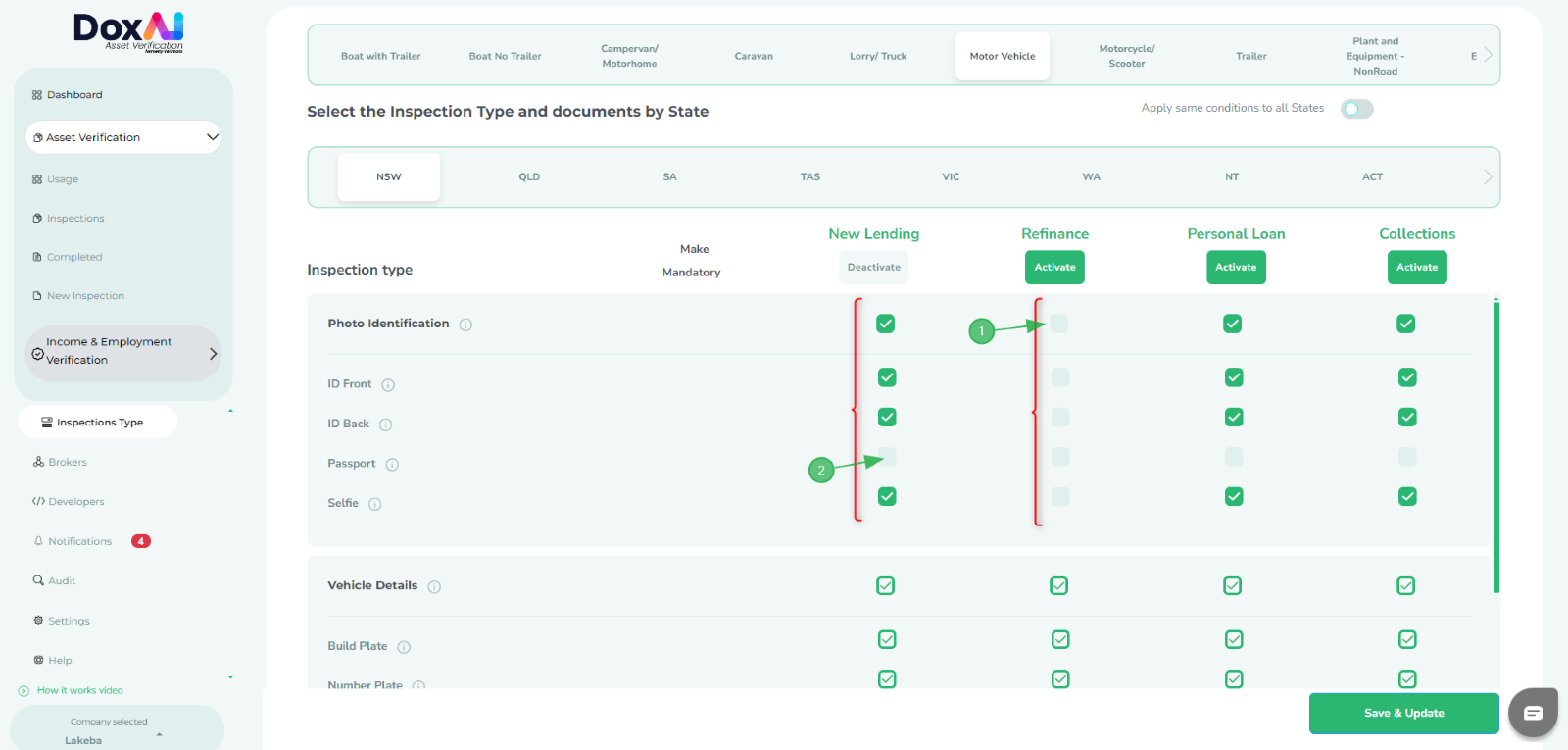
- Once the document list is finalised, click the “Activate” button to activate that “Inspection type”
- Click on “Save and update” to save the changes. NOTE: These changes will be reflected in the new Inspections created for your company by brokers OR from your Lender company.
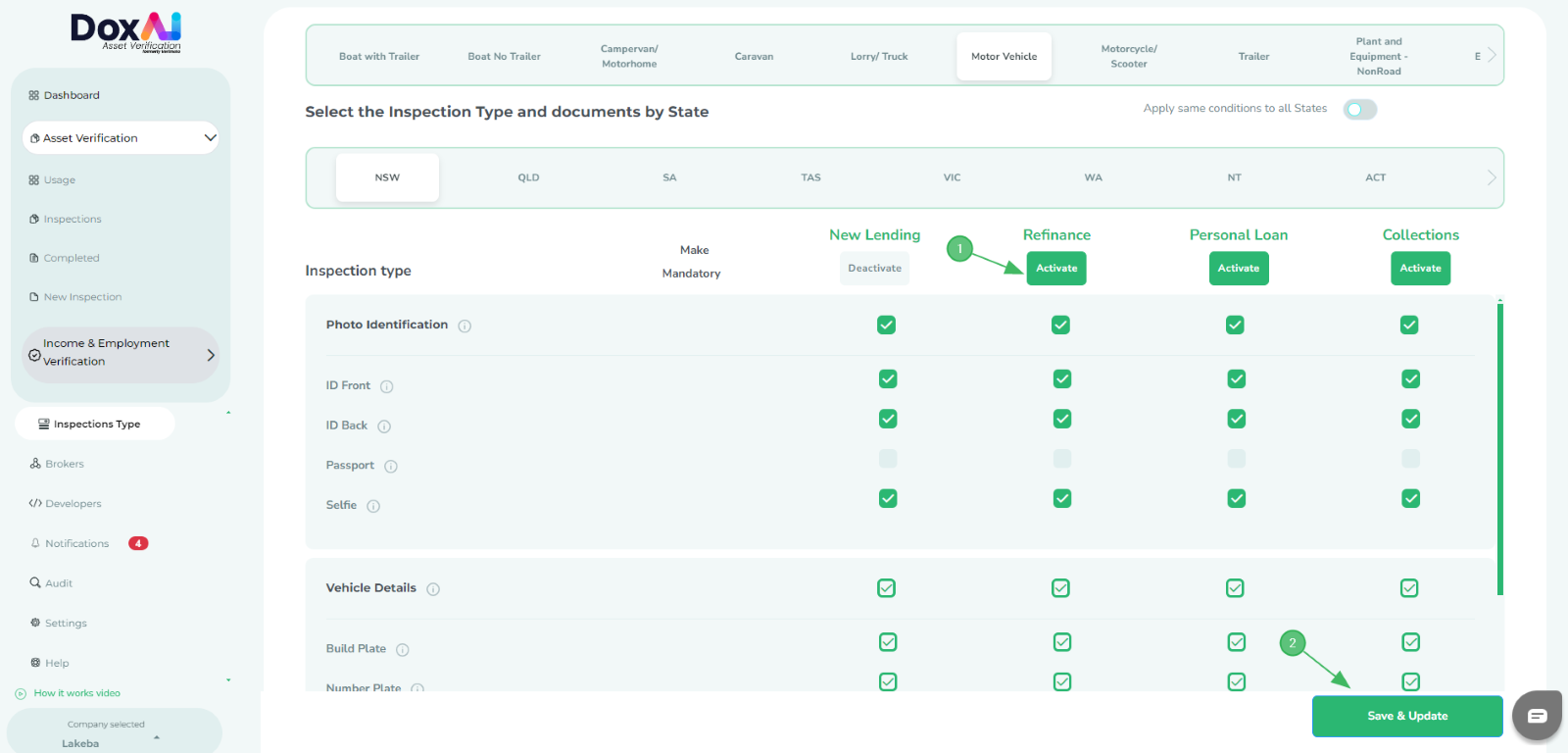
You can also deactivate any Inspection type by clicking the “Deactivate” button-

Meaning of different status of the inspection
- Created: After the inspection has been created by the broker.
- Started: After the seller has provided the 6-digit OTP in the web app and progressed to upload the documents.
- Submitted: After the seller has uploaded and submitted all the documents via web app.
- Completed: After the support team completes the document review and generates the report.
- Rejected: If the support team rejects any document submitted by the seller.
- By-passed: If the support team has rejected any document but the lender has requested to bypass OR approved a bypass request from broker to accept the same document.
- Cancelled: After the initiator cancels an Inspection from the “Edit inspection” tab.
- Suspended: After the support team suspends any inspection based on the request from the initiator
How to View inspection details and progress
Go to “Inspections” and select “View details” of the inspection.

NOTE: If you are an admin user, you can also view the Activity log, Edit Inspection and Send reminder tab for the inspections created by other users from your company.
If the inspection was created by a third party (external) broker for your lender company, in “View details” you can track the Inspection progress.
How do I edit the created inspection
Go to “Inspections” and select “View details” of the inspection.

In “View details”, click on “Edit Inspection”.
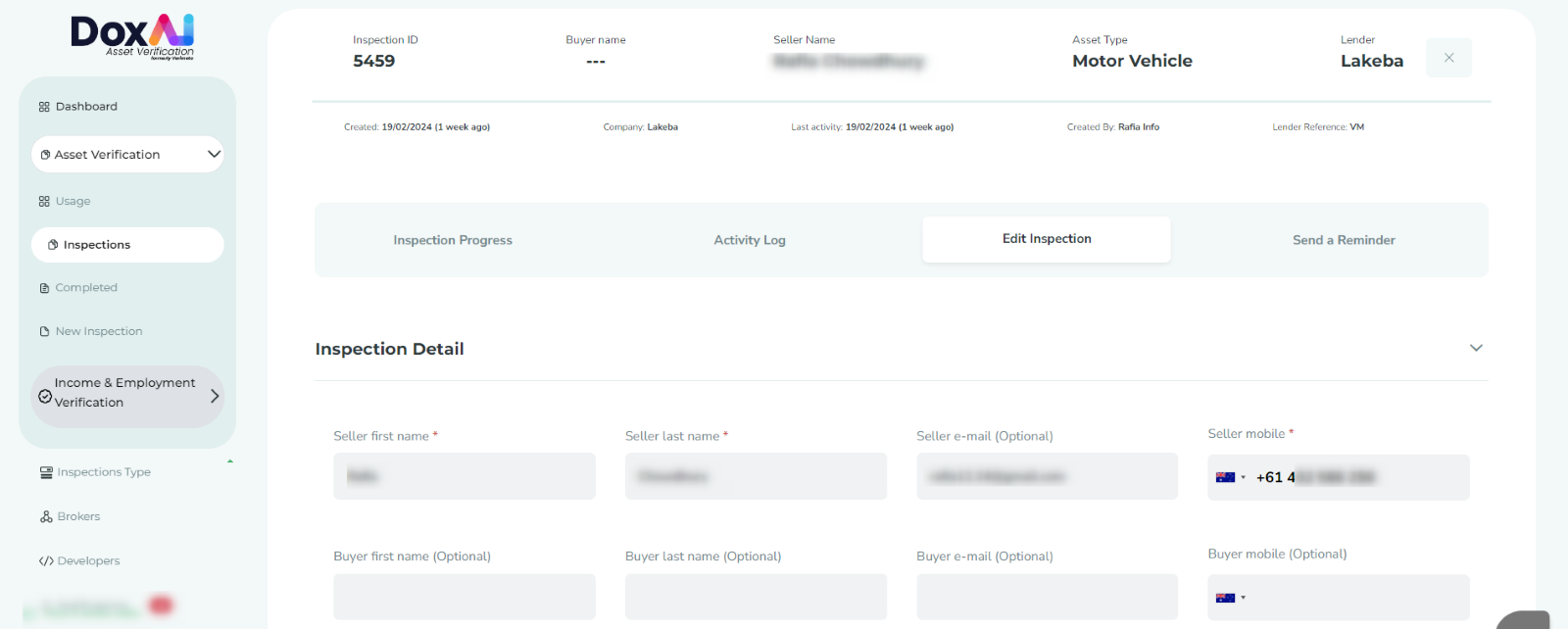
You can edit seller details if the inspection is in “Created” status. If seller started working on the inspection, you can’t edit seller details. You can also edit the lender reference number before the inspection is completed/granted/cancelled.
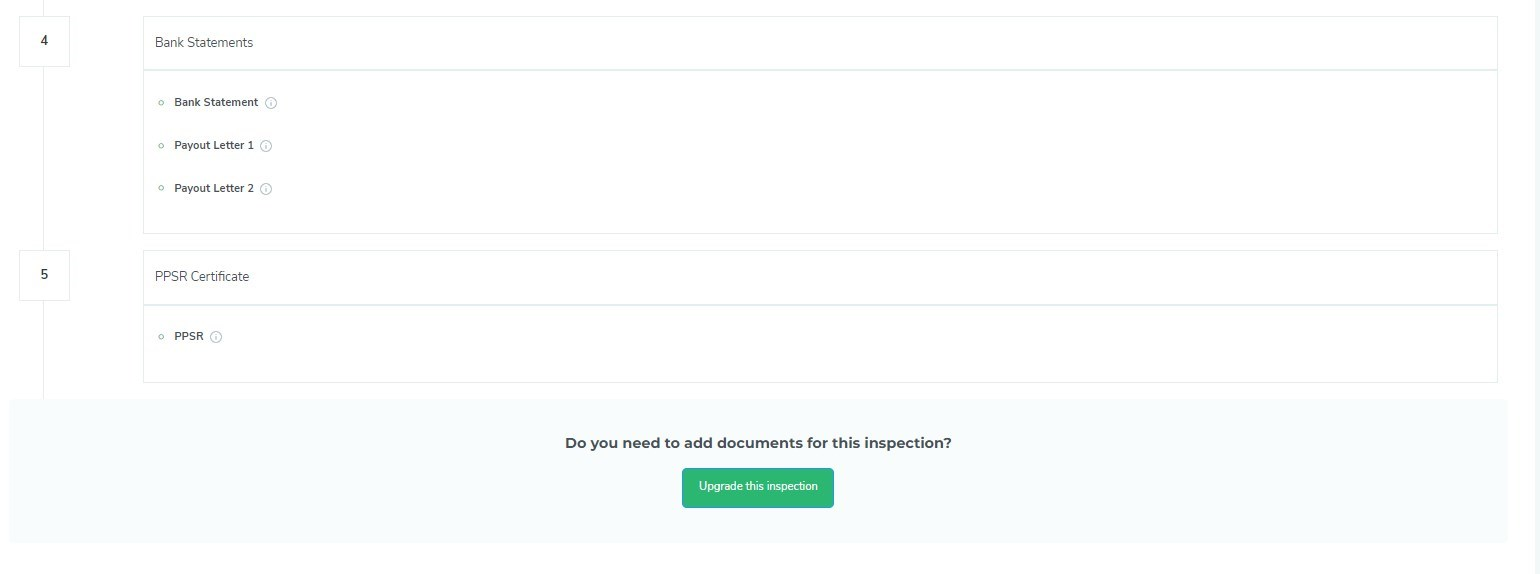
If you have multiple inspection types activated, then the inspection with created status can be edited to change the inspection type using Upgrade this inspection option under Document required section.
How to delete an inspection
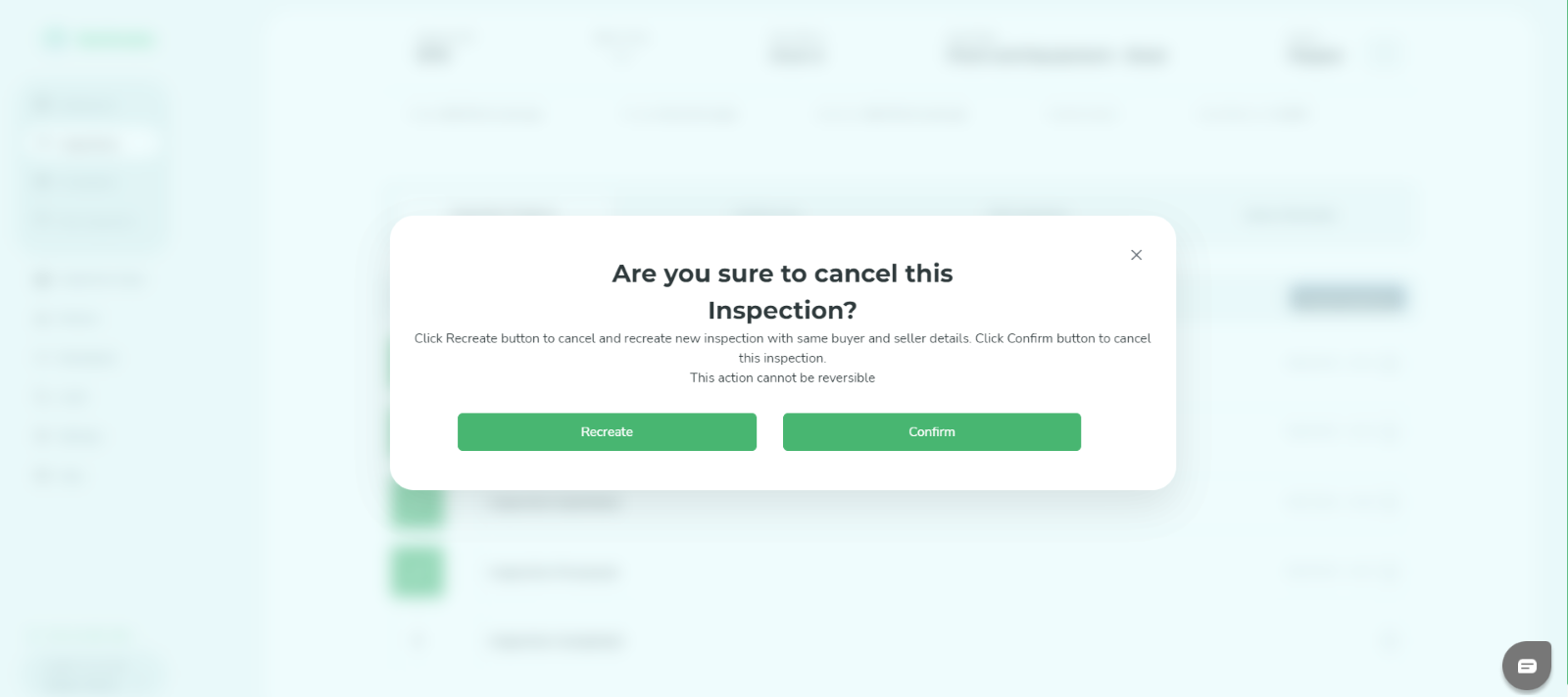
Go to “Inspections” and select “View details” of the inspection. In “Inspection Progress”, click on “Cancel Inspection” to delete the inspection. You can cancel an inspection only if the report has not granted by Admin.
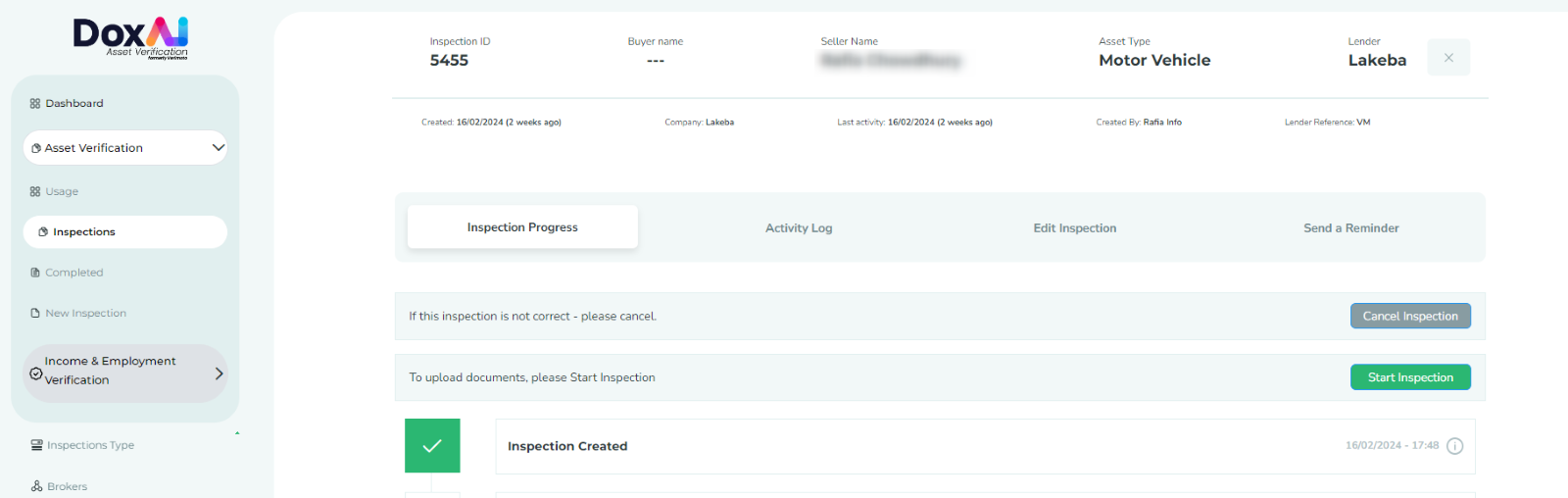
On click “Cancel Inspection”, you will have option to recreate a new inspection with the same details in editable format or confirm the cancellation of the inspection.
How to view rejected documents, notify seller or request bypass
If any of the seller’s uploaded documents get rejected, the seller of the inspection will get notified and the respective inspection will have “Rejected” status.

Click on “View details” of the rejected inspection, to view the rejected documents. You can also use the “Notify seller” button to send a customized message to the seller’s email.
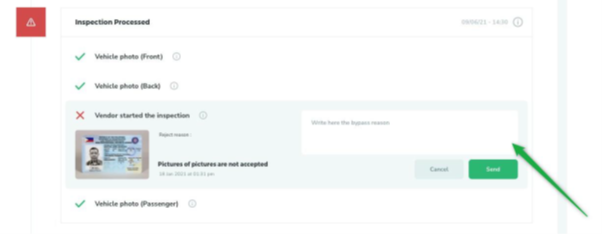
To request admin to bypass a rejected document, click on “Bypass” and mention reasons for bypass before sending the request to admin.
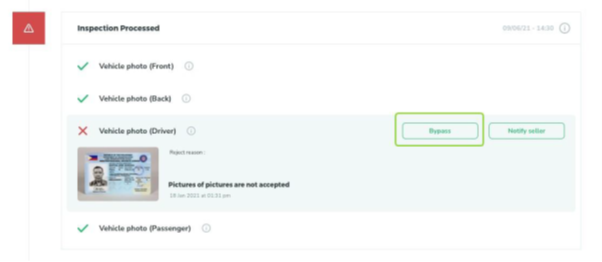
Note: This bypass reason will also be reflected in the final report.
How to Download a report
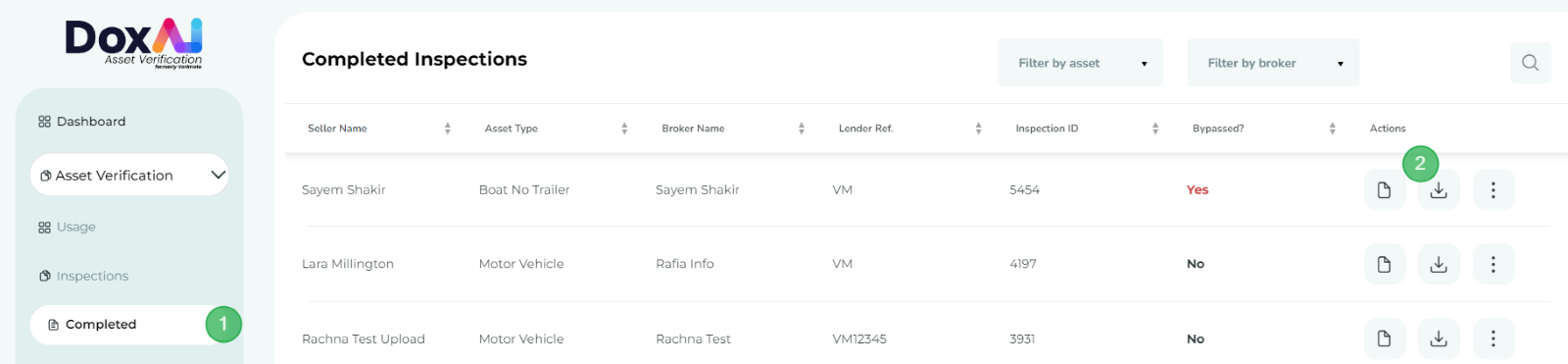
- Go to “Completed” tab from left menu.
- Click on “Report” to download the report.
How to invite new users to join your company
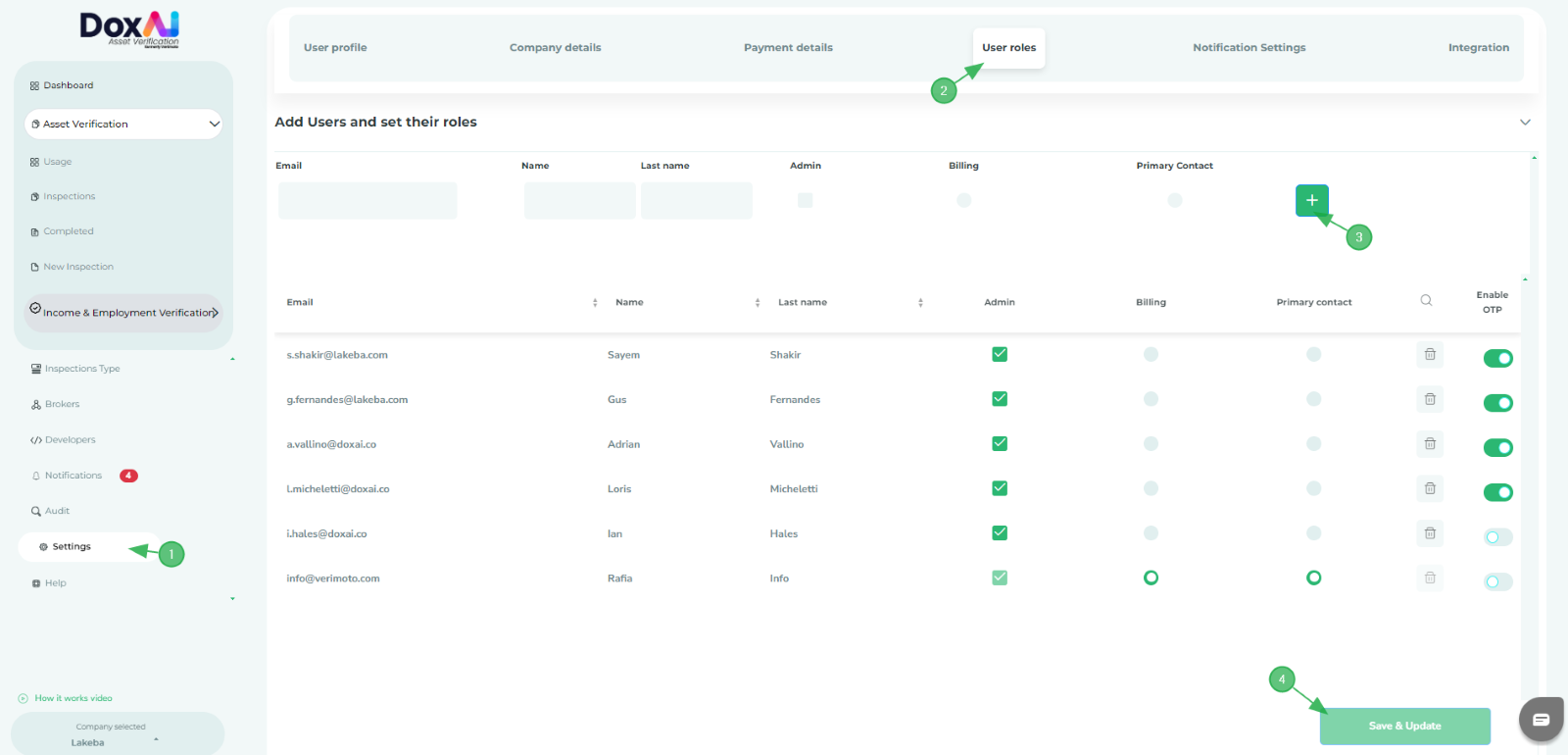
- Go to Settings.
- Click on “User roles”.
- Provide the user details, Email address, First name, and Last name. Also assign the roles to the user (Admin, Billing, Primary contact).
- Click “+” button to add this new user. You can add multiple users to the list using this button.
- Finally, click “Save & update” button.
- Added user will receive an invitation email to join your company. Once the user completes the onboarding process using that invited link, they will get added as the broker of your company and can create new inspections.
- User Roles:
Admin: Will have overall access to the portal.
Billing: Will have access to manage the payment methods and invoicing options.
Primary Contact: Primary escalation contact for support and queries.
How to set your visibility among all Brokers OR limit it to your Users only
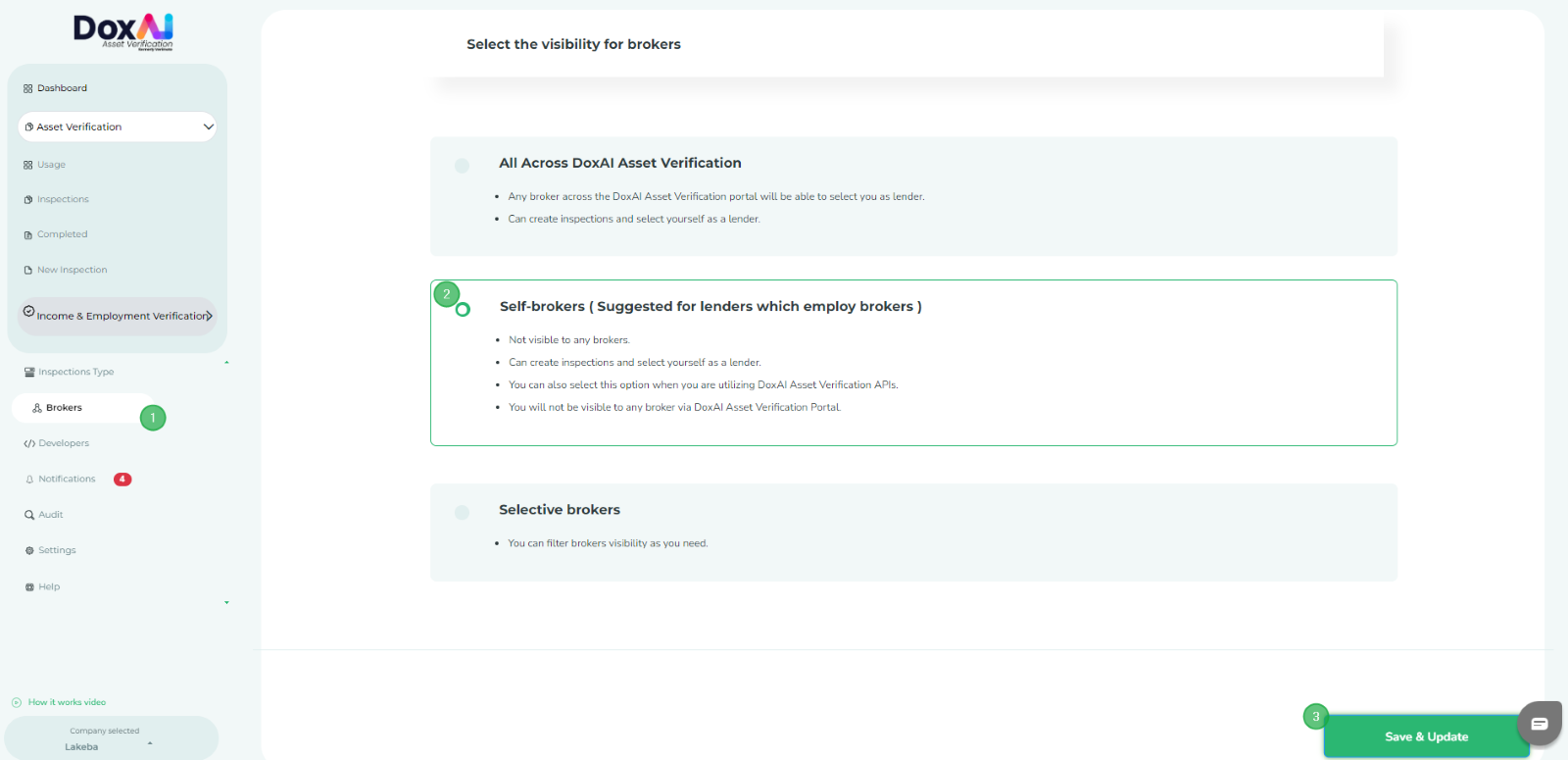
Visibility with just the company’s users: If you want to set your visibility with just the users under your company-
- Go to “Brokers” tab
- Select “Self-brokers”
- Click “Save & Update”
Visibility with other Brokers in DoxAI Asset verification:
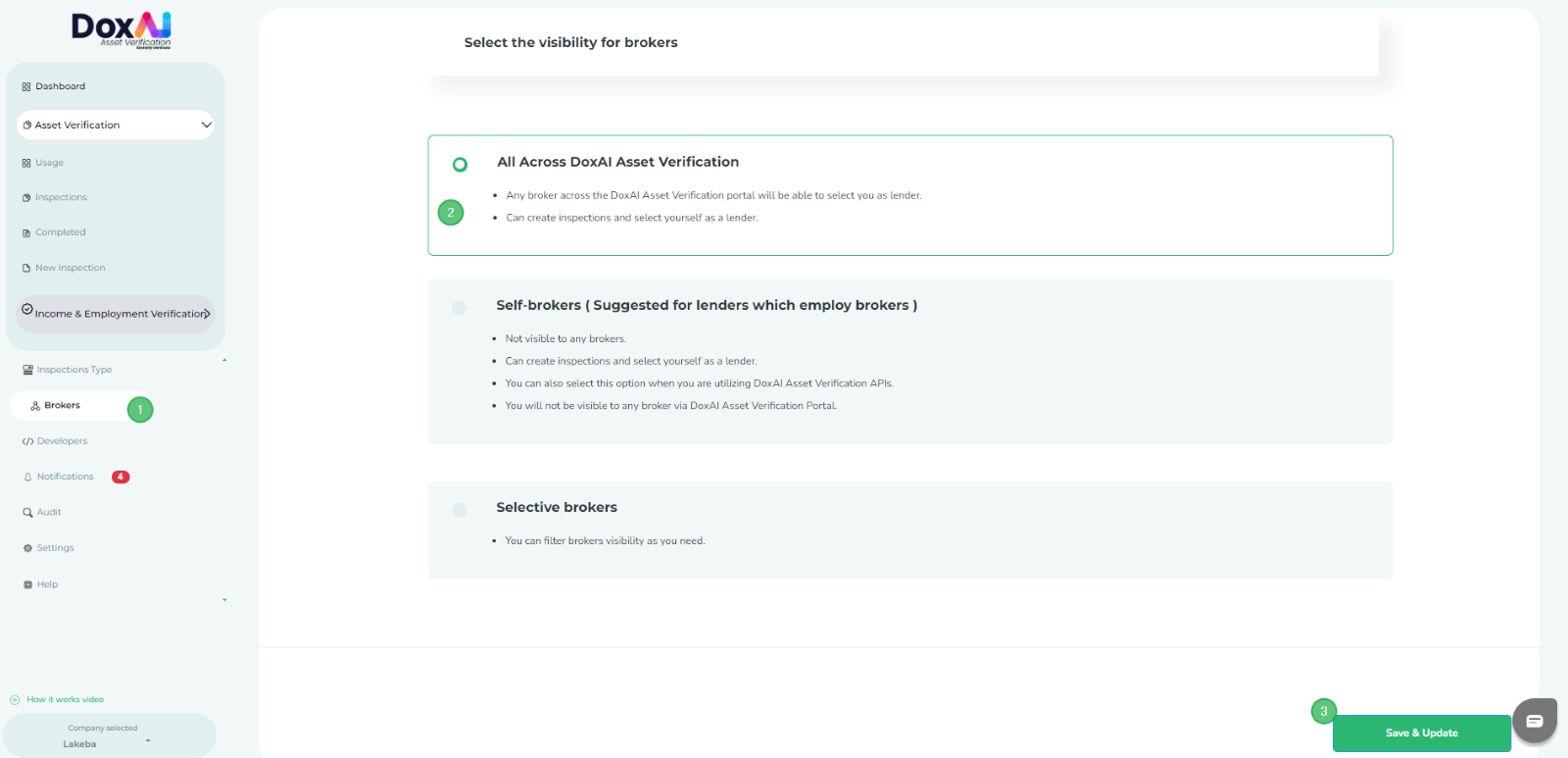
If you want to set your visibility with All the brokers-
- Go to “Brokers” tab
- Select “All Across DoxAI Asset Verification”
- Click “Save & Update”
If you want to select specific Broker companies, select “Selective Brokers” and click on “View companies and brokers”
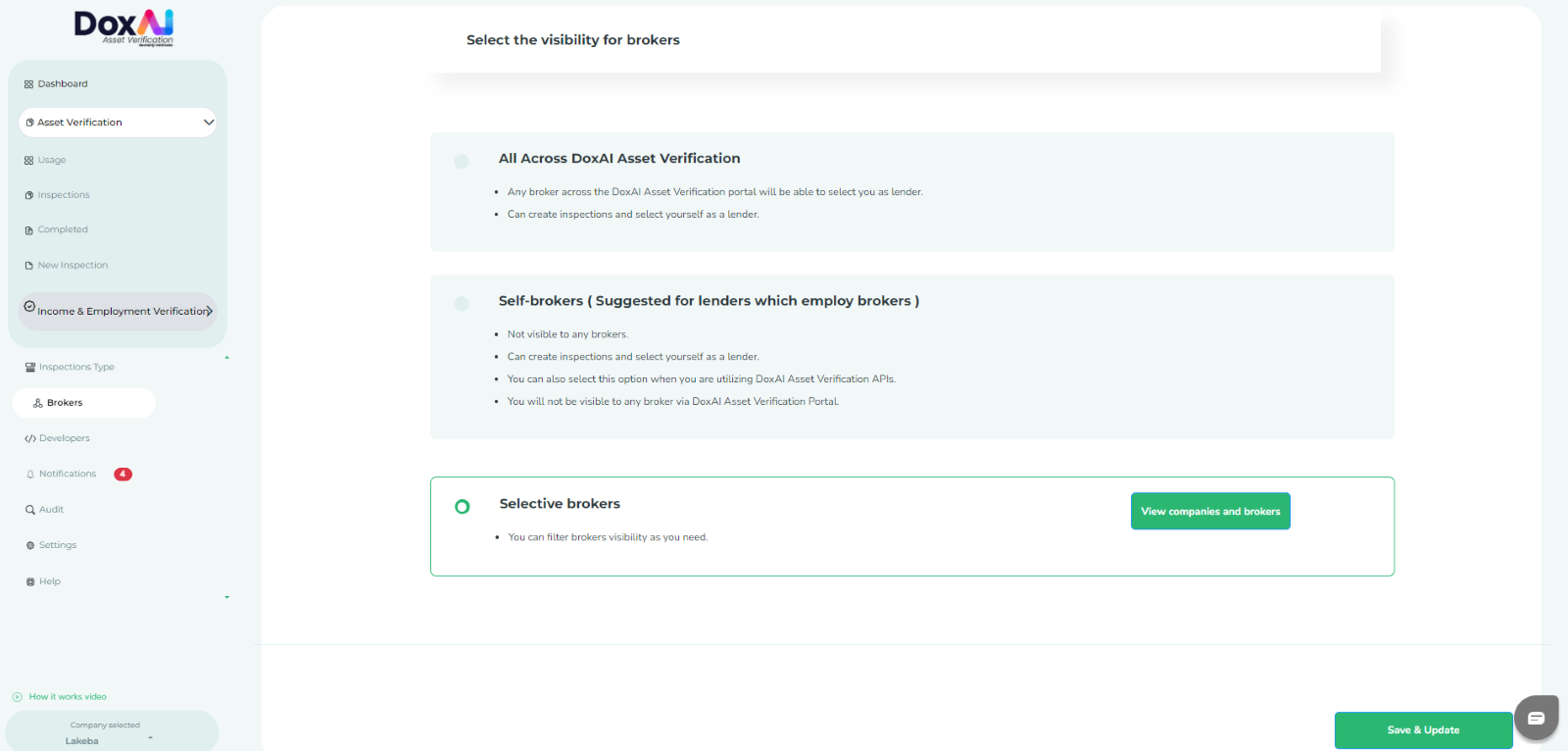
- Search the name of the Broker Company.
- Enable the toggle button for companies you want to be visible.
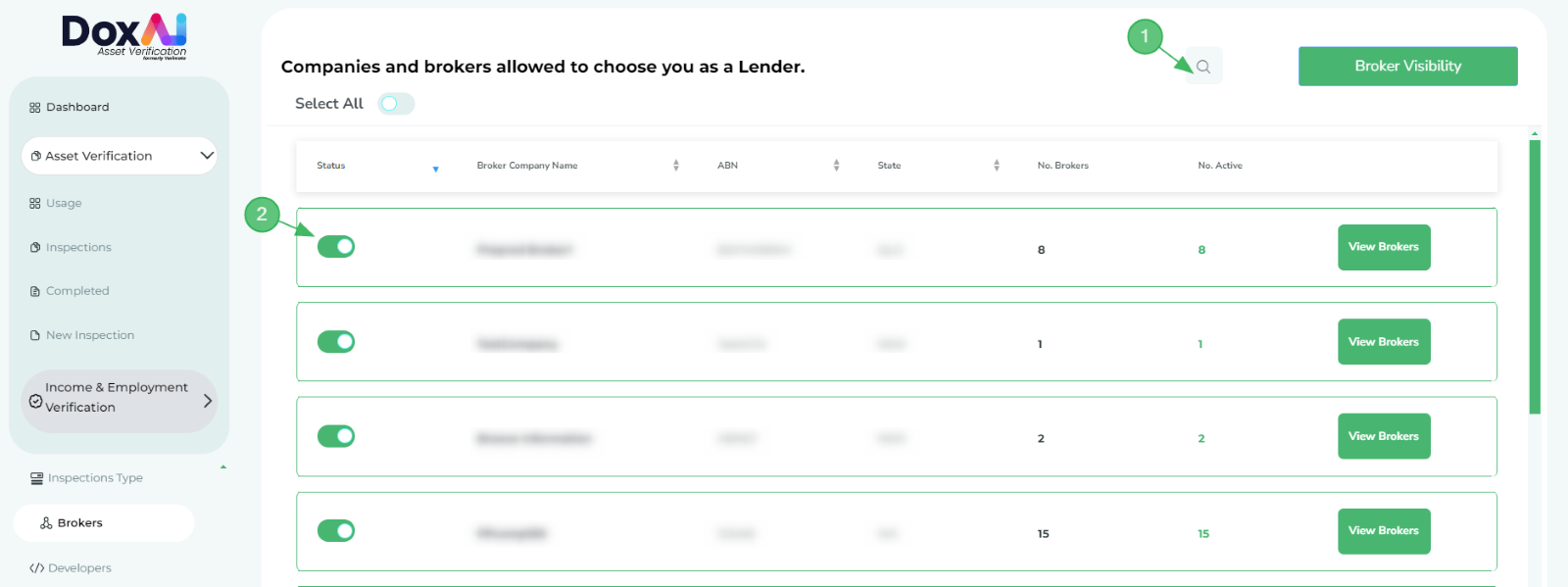
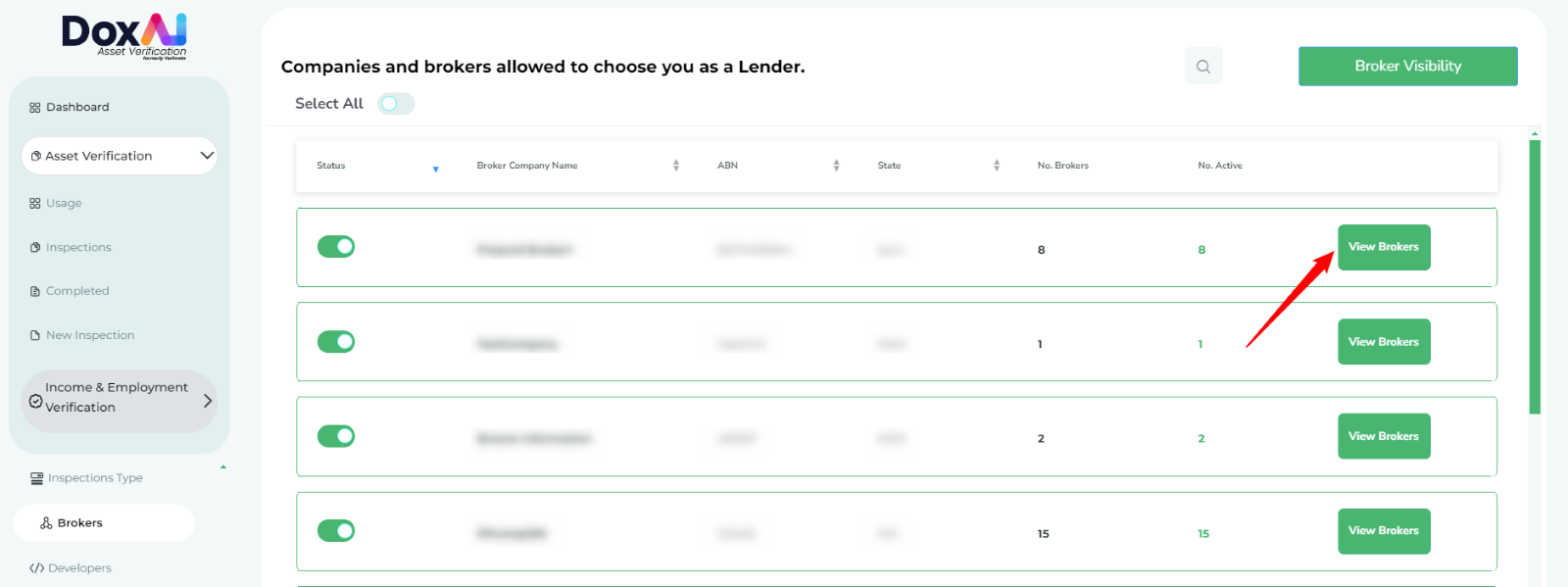
If you want to Block a specific Broker within a Broker company, click on “View Brokers” button against that company.
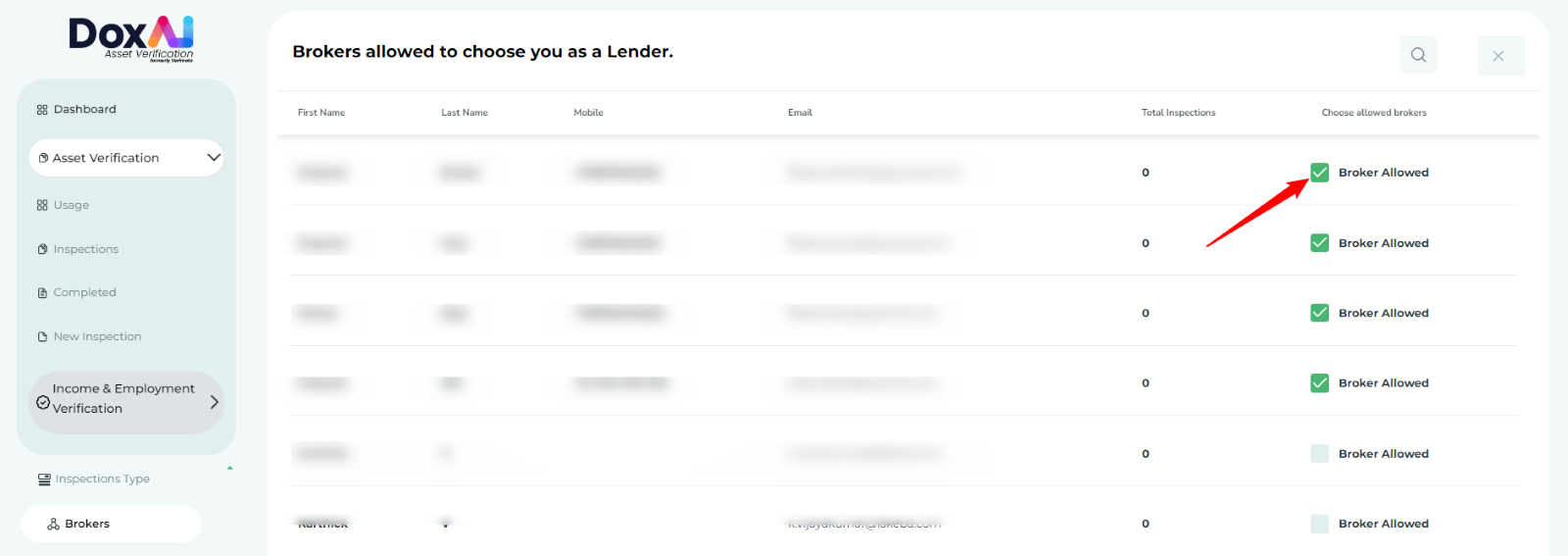
- Uncheck the broker(s) you want to block.
How to integrate B2B API
If you want to access our B2B APIs through the Developers tab, please contact us via support@hosting-stag.lakeba.com:7002
How do I update my payment details?
There are two payment methods available- Pay as you go via credit card & Pay monthly by invoice.
Pay as you go via Credit card– Inspections created from Lender portal by you will be charged by credit card. If a broker creates an inspection under you, broker will be charged from their credit card.
- Go to “Settings”
- Click on “Payment details”.
- Add a valid card detail and click “Save & Update”
Pay monthly by invoice- To pay monthly by invoice please contact Support@hosting-stag.lakeba.com:7002. You will need to have a signed contract with DoxAI Asset Verification to receive monthly invoice.
What are Admin Users Responsibility?
If You are a lender with administrator rights, you have the full responsibility for:
- Properly maintaining the list of users added under your company, including a regular review to ensure it remains appropriate and that all users who no longer require access to Asset Verification are removed.
- Assigning and maintaining appropriate user access/roles/permissions, appropriately limiting those with administrator-level of access to ensure appropriate security practices are used to prevent unauthorized access to Asset Verification by anyone other than authorized personnel;
- Ensuring the security settings of DoxAI comply with your specific security policy requirements.
- Monitoring overall portal activities via Audit tab
- Ensuring the supervision, management, and control of the use of DoxAI by your personnel and other authorised users;
- Notifying us of changes made to your technical or administrative contact details;
- Maintaining the security of data associated with integrations and API’s connected to Asset Verification.
- Reporting any security-related concerns or incidents to our security team in a timely manner by emailing support@hosting-stag.lakeba.com:7002 with a full and accurate description of the concerns or incidents.
If you are a lender with Billing responsibility-
- Add/ remove payment multiple payment methods (credit cards)
- Select primary payment methods
- Monitoring transactions
How do Lender Admin monitor portal activities?
Lender Admin can monitor portal activities via “Audit” tab.
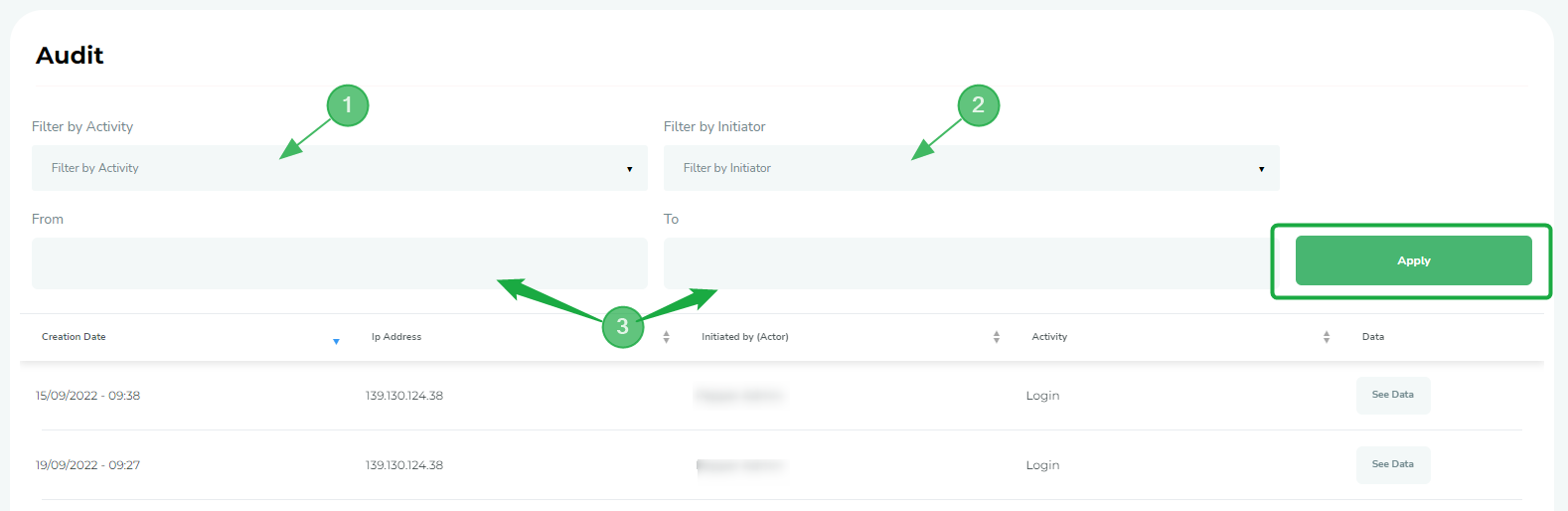
- To check the Activity log of all users, select the Activity type from the “Filter by Activity” dropdown list and click “Apply”.
- To check the Activity log of any specific user, select the user from the “Filter by Initiator” dropdown list and click “Apply”.
- To check the Activity log of a certain date range, select the date range and click “Apply”.
How do I add my company as a lender under DoxAI Asset Verification?
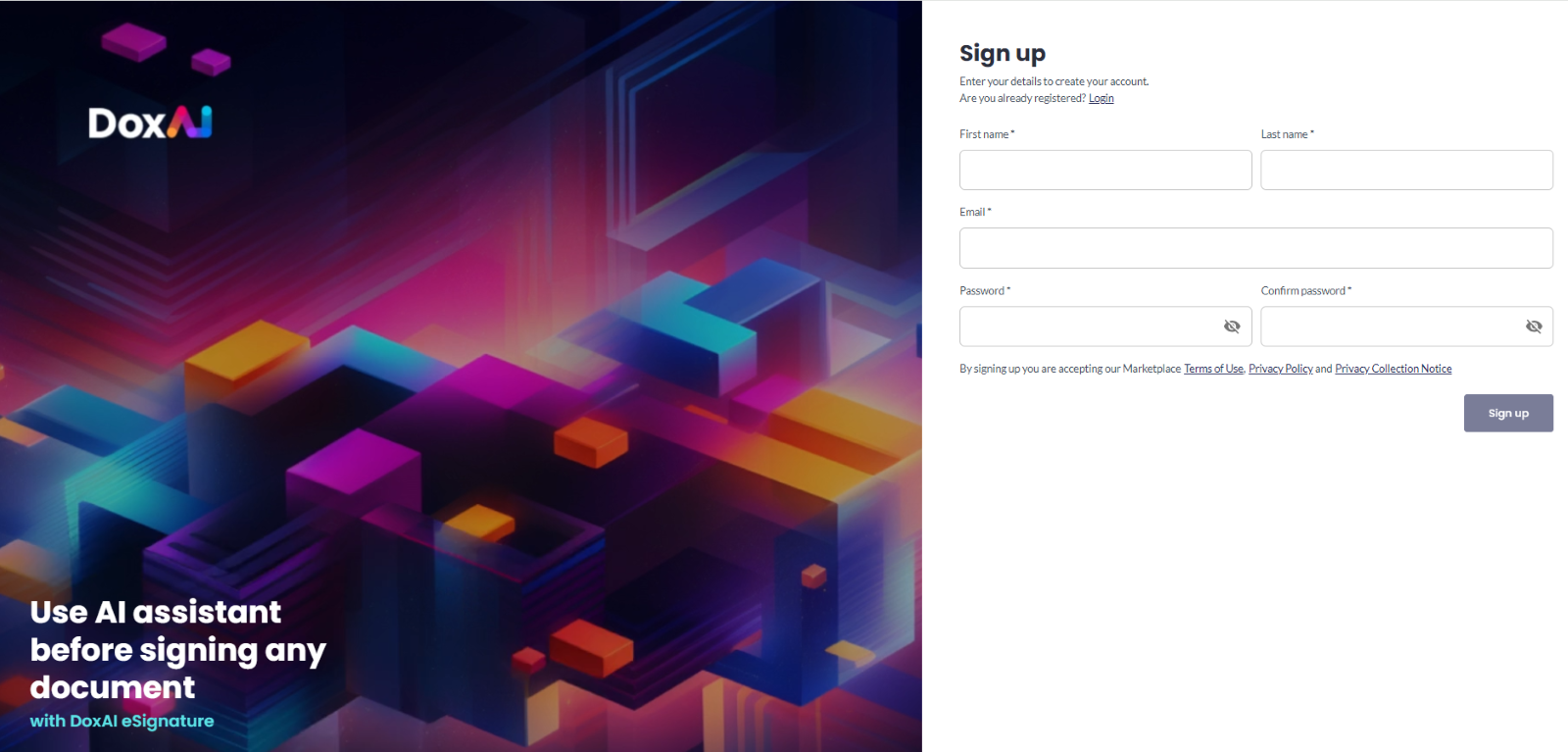
Go to our sign-up page- http://hosting-stag.lakeba.com:7002/ and sign up with your First name, Last name, Email address and password-
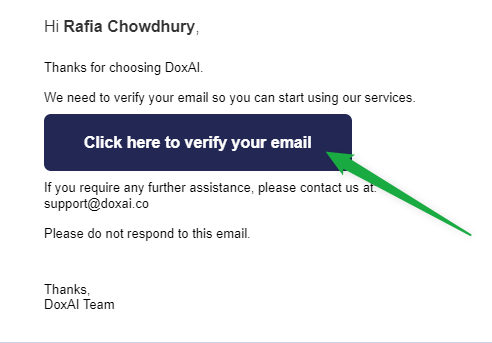
You will receive below email to verify your email address. Verify your email address and activate your account.
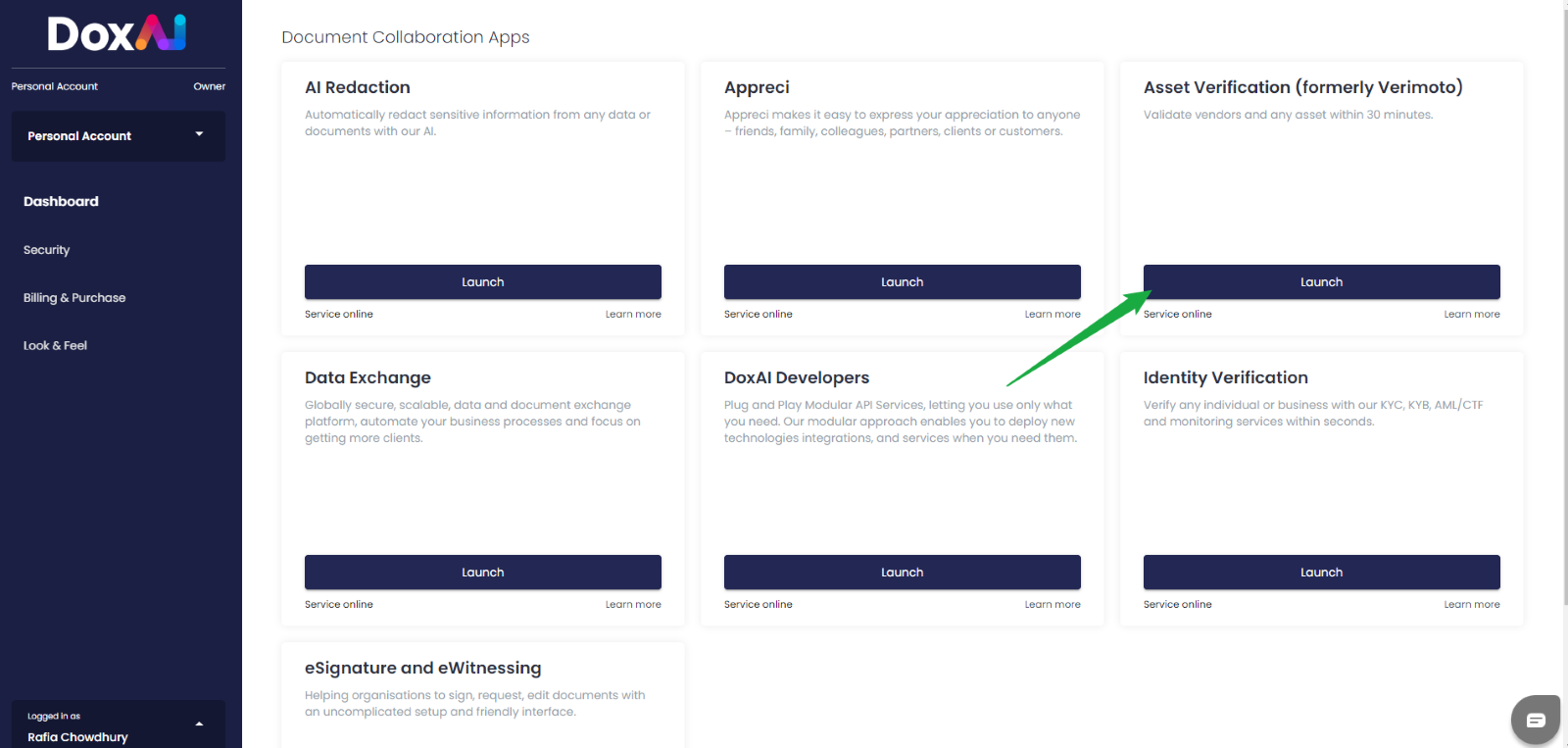
After email verification, login into your account and launch “Asset Verification” from “Dashboard”-
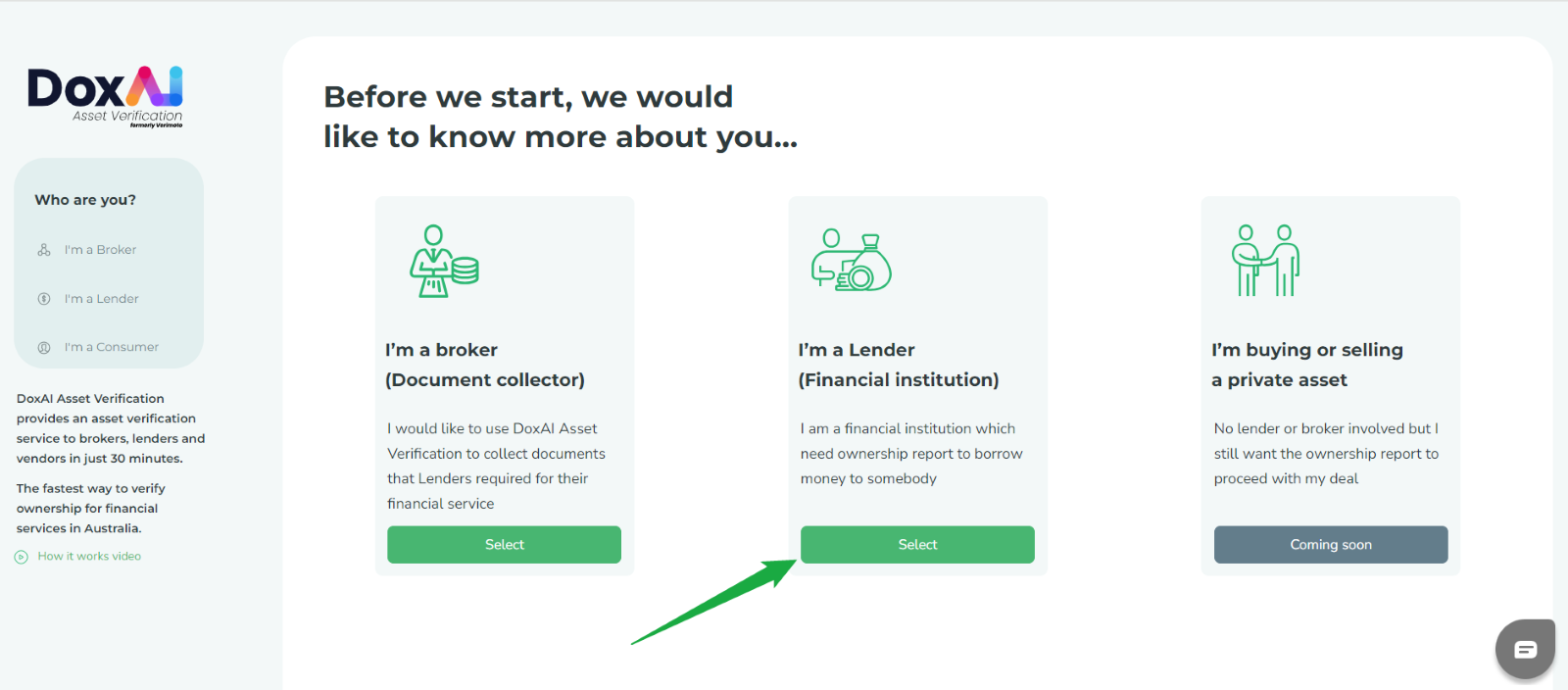
Provide company and personal details-
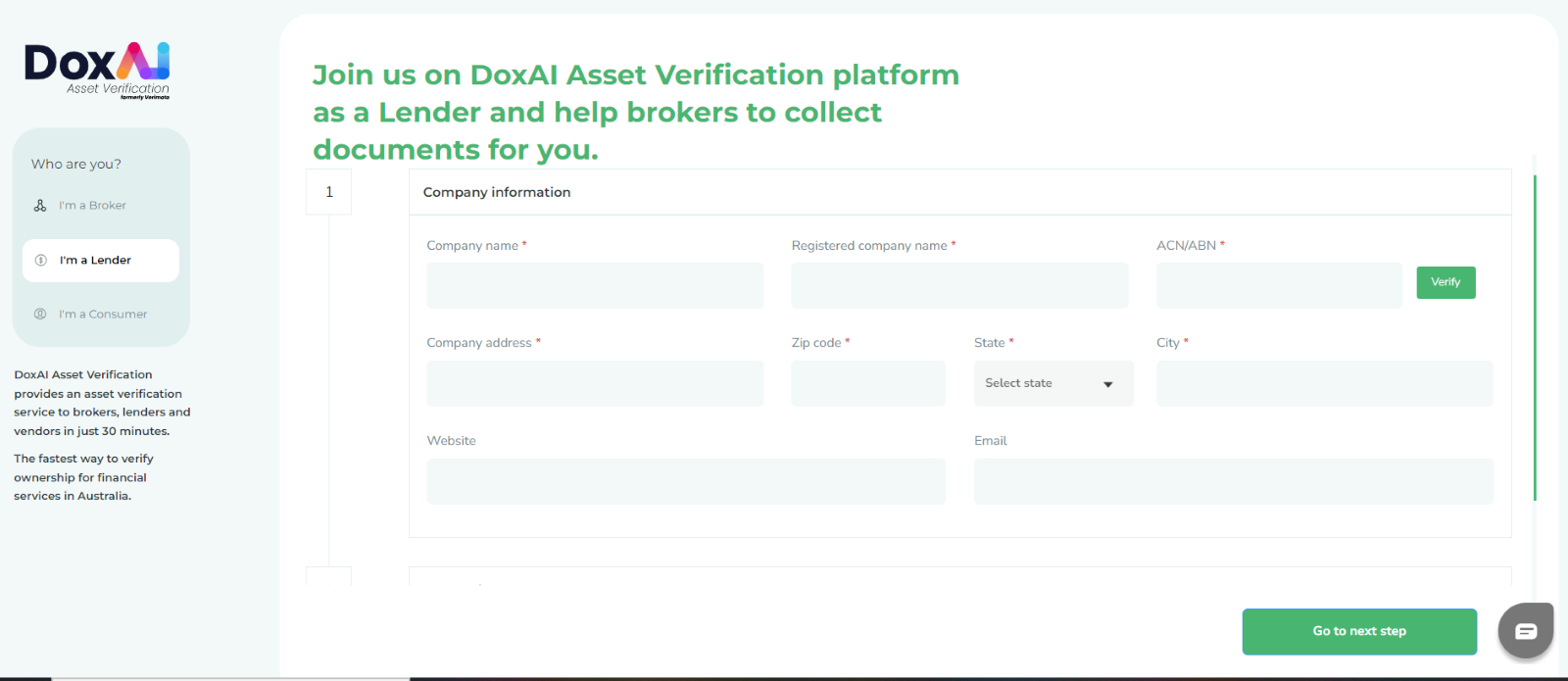
Write your message in the text box and “Register and get started”. Once the form is submitted, our team will get in touch with you within 3 business days.
Lender portal help document
Private sale Invoice Lender User Guide
Income & Employment Verification User Guide
How to set visibility with brokers on new Lender portal
How to configure multiple Inspection type on new Lender portal Print
How to add and remove users on new Lender portal
How to download a report on new Lender portal
How to cancel an inspection on new Lender portal
How to notify seller about rejected images on new Lender portal Print
How to view and bypass rejected document on new Lender Portal
How to create new Inspection in Lender Portal
How to edit an inspection in Lender Portal